AI Meeting Assistants: How They Work and What to Check
What actually happens when an AI notetaker joins your call, the privacy questions worth asking, and a checklist for picking a meeting assistant that fits your team.
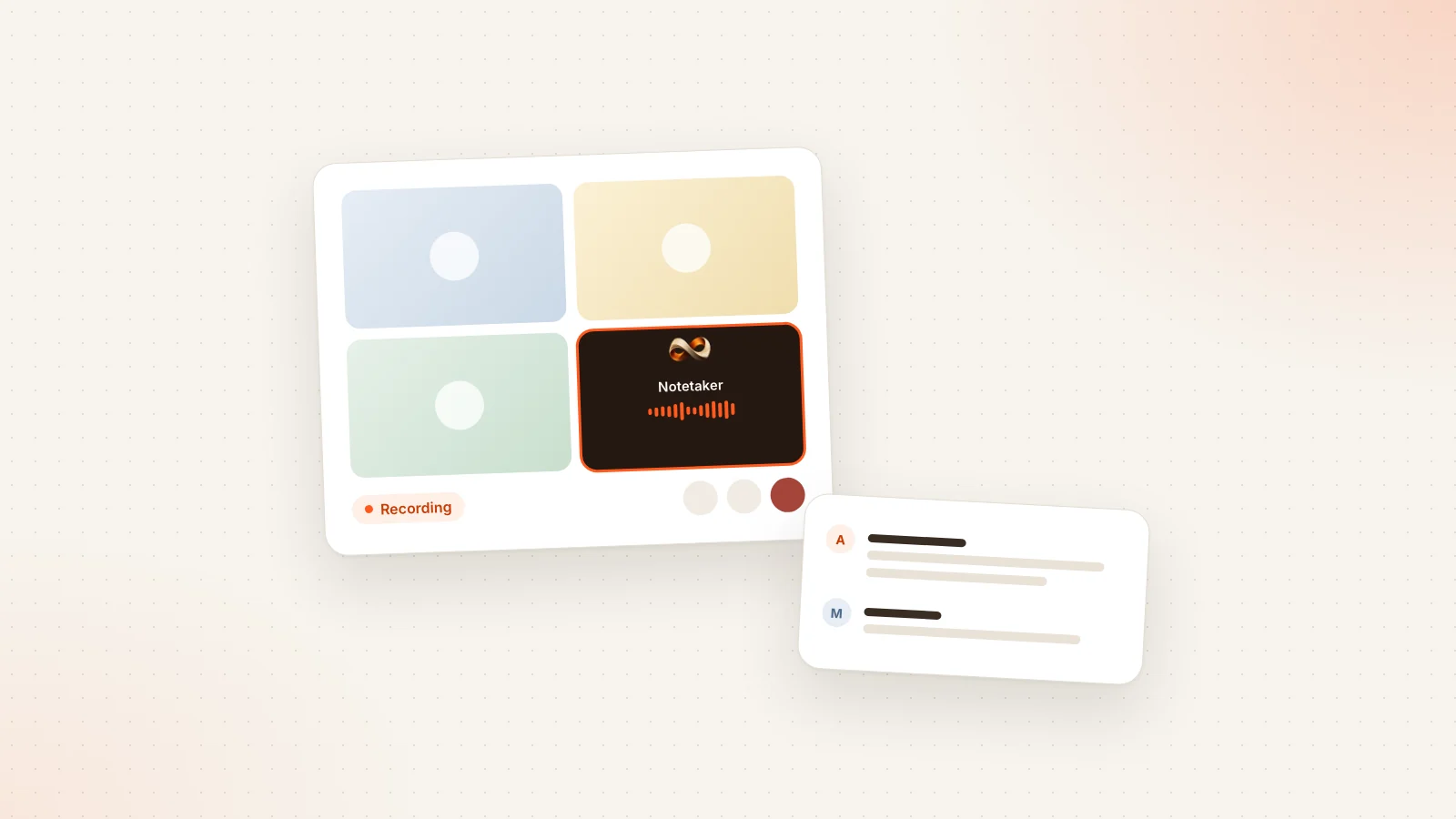
An AI meeting assistant promises something simple: you talk, it listens, and afterwards you get a clean record of what was said, what was decided and who owes what. No more splitting your attention between the conversation and a notes document. No more guessing, three days later, whether the deadline was Friday or the Friday after.
The promise is real, but the details matter. These tools join your calls, capture audio from people who may not have chosen to be recorded, and send that audio somewhere to be processed. The quality of the output depends on things the software cannot fully control, like microphones and crosstalk. And the market is crowded enough that two products with nearly identical landing pages can behave very differently once they are inside your calendar.
This guide walks through how AI notetakers for Google Meet, Zoom and Microsoft Teams actually work, the privacy and consent questions you should ask before turning one on, the honest limitations, and a practical checklist for choosing one. Where it helps to be concrete, we use Libranotes as an example, since that is the product we know best.
What an AI meeting assistant actually does
At its core, an AI meeting assistant turns a spoken conversation into structured, searchable text. Most tools follow the same broad pipeline:
- Capture. The assistant gets access to the meeting audio, usually by joining the call as a participant.
- Transcription. Speech is converted to text, typically with timestamps.
- Speaker labels. The transcript is split by who was talking, so you can see that a point came from the client and not from your colleague.
- Summarization. A language model reads the transcript and produces a summary, a list of decisions and a list of action items.
- Delivery and follow-up. The results are sent to you, and sometimes to the people who own the action items.
The first three steps are about accuracy. The last two are about usefulness. A perfect transcript nobody reads is only a slightly better recording. The value shows up when the output is short enough to skim, specific enough to act on, and easy to find again later.
How the bot gets into your meetings
Calendar connection
Most assistants start by connecting to your calendar. Once connected, the tool looks at upcoming events, finds the ones with a video link, and schedules itself to join. This is why setup is usually quick: you connect once and the assistant shows up to future calls without you inviting it each time.
Calendar access is also the first privacy decision you make. Read the permission screen. A tool that only needs to see event times and meeting links should not need much more than that. Libranotes works from Google Calendar or from an ICS calendar feed, which is useful if your company calendar lives elsewhere and you would rather share a read-only feed than grant broader access.
The bot joins as a participant
On Google Meet, Zoom and Microsoft Teams, the most common approach is a bot that joins the meeting like any other attendee. It appears in the participant list with a name and often a picture, and depending on the platform and the host settings, it may need to be admitted from the waiting room.
This visibility is a feature, not a flaw. Everyone in the call can see that something is recording. Some tools let you customize the bot name and picture so it is obvious whose assistant it is. In Libranotes you can set a custom bot name and picture, which helps when you meet with clients who want to know exactly what that extra tile is.
Recording and transcription
Once in the call, the bot captures the audio stream and sends it for transcription. Some products transcribe live; others process the recording after the call ends. Either way, the transcript is the foundation for everything that follows, so its quality sets a ceiling on the quality of the summary.
Summaries, decisions and action items
After transcription, a language model produces the useful layer: a short summary, the decisions that were made and the action items with owners and, when they were mentioned, due dates. The good tools keep these grounded in the transcript so you can check where a statement came from.
A perfect transcript nobody reads is only a slightly better recording. The value is in what you can act on.
Privacy and consent: the questions to ask first
Before connecting any meeting assistant, it is worth slowing down on privacy. You are not only making a decision about your own data. You are making one about everyone you meet with.
Tell people they are being recorded
The simplest rule is also the most important: participants should know. A visible bot helps, but it is not the same as telling people. A short line in the invitation or a sentence at the start of the call ("our notetaker is recording so I can focus on the conversation") goes a long way. If someone objects, have a way to remove the bot quickly.
Recording laws vary by country, and sometimes by state or region. Some places require the consent of everyone in the conversation, others only one party. Workplace rules and industry regulations can add more requirements. We are not in a position to give legal advice, so check the rules that apply to you and your participants, and involve your legal or compliance team if you handle sensitive conversations.
Where the audio goes and how long it stays
Ask where recordings are processed and stored, and for how long. Some tools keep audio indefinitely so you can replay it; others delete it once the transcript exists. Keeping audio is convenient, but it also means a larger, more sensitive archive that has to be protected. In Libranotes, audio is deleted after the transcript is produced, so what remains is the text and the notes generated from it.
Training on your data
Ask directly whether your transcripts or recordings are used to train AI models, either the vendor's or a third party's. The answer should be clear and in writing. Libranotes does not use your data to train models.
Sharing controls and security
Look at how summaries are shared. Can you send a recap to a specific person, or does everyone on the invite get it automatically? Can you tell whether a shared link was opened? Who inside your organization can see which meetings? On the security side, ask about certifications honestly. For reference, SOC 2 is in progress for Libranotes, not completed, and it is reasonable to expect any vendor to tell you plainly where it stands.
Consent and retention are not only legal questions. They shape whether clients and colleagues trust you enough to speak freely when the bot is in the room.
The honest limitations
AI meeting assistants are useful, but they are not magic. Knowing the limits helps you set expectations for your team.
- Bots are visible. Some participants find an extra attendee off-putting, especially in sensitive or early-stage conversations. For those, skip the bot and take notes the old way.
- Audio quality matters. Laptop microphones in echoey rooms, people talking over each other and poor connections all reduce transcript accuracy. Headsets help more than any software setting.
- Speaker labels are not perfect. When several people share one microphone in a conference room, the tool may struggle to separate voices.
- Summaries need a skim. A language model can misread sarcasm, merge two separate points or miss that a decision was later reversed in the same call. Spend a minute reviewing the summary before you forward it.
- Action items need owners. If nobody said who would do something, the tool cannot invent a reliable owner. Say names and dates out loud during the meeting.
None of these are reasons to avoid the tools. They are reasons to treat the output as a strong first draft rather than an official record. If you want to get more out of the follow-up side, our guide on turning meeting notes into action items covers the habits that make a summary actually lead to work getting done.
What to look for: a buyer checklist
Once you are comfortable with the basics, the differences between products come down to a handful of practical questions. Use this table as a starting point when you compare options.
| Question | Why it matters |
|---|---|
| Does it work on Google Meet, Zoom and Microsoft Teams? | Your clients and partners will not all use the same platform. |
| Which languages does it support for summaries? | Mixed-language teams need summaries in a language everyone reads. |
| Does it follow up on action items? | A list in a document is easy to ignore; a reminder to the owner is not. |
| Can you search and ask questions across meetings? | You will need to find what was agreed months later. |
| Are answers backed by source citations? | Citations let you verify an answer instead of trusting it blindly. |
| What export formats are available? | Notes often need to live in other tools or be sent to people outside. |
| What happens when several teammates use it? | Three bots in one call is awkward and wasteful. |
| Can you skip a meeting or a recurring series? | Not every call should be recorded. |
| Does it handle in-person meetings? | Some of the most important conversations happen in a room. |
| How is it priced? | Per seat, per meeting and usage caps behave very differently as you grow. |
Platform coverage
Check that the assistant supports all three major platforms, not only the one your team uses internally. External meetings are often where notes matter most, and you rarely choose the platform for those.
Languages
If your team works across languages, look at what languages the summaries support, not only the transcription. Libranotes produces summaries, decisions and action items in 32 languages, including Turkish and English, and can also give you the original language plus English, which helps when a meeting happened in one language and part of the team reads another.
Action item follow-up
This is where many tools stop short. A summary that lists action items is helpful; a system that actually delivers those items to the right people is better. In Libranotes, action items are emailed to their owners, who can accept or complete them from a link without creating an account. Items with a real due date that become overdue trigger a daily reminder, so follow-up does not depend on someone remembering to chase.
Search and Q&A with citations
After a few months, your meeting history becomes a knowledge base. The question is whether you can use it. Look for search that works across meetings and, ideally, the ability to ask questions in plain language. The important detail is citations: an answer that points to the exact source lets you check it. The Ask feature in Libranotes answers questions with source citations across your meetings, notes and Google Drive documents, and Drive folders can be kept in sync.
Exports and sharing
Check that you can get your data out. Common formats are PDF, Word and Markdown. Also check how recaps are shared: by email, by link, and whether you can see if they were opened. Libranotes supports all three export formats and lets you share a recap by email or by a link, with open tracking.
One bot per meeting
When several people on the same team use an assistant, some tools send one bot per user. The result is a call with three identical notetakers, which looks odd to clients and adds nothing. Look for deduplication. Libranotes sends one notetaker per meeting even if several teammates use it.
Skip controls
You need an easy way to keep the bot out of specific meetings: a one-on-one about a personal matter, an interview, a sensitive negotiation. The best controls work at both the single-meeting and the recurring-series level, so you do not have to remember every week.
In-person meetings
Not everything happens on a video call. If some of your important conversations are in a room, check whether the tool can record through your device microphone or accept an uploaded audio file. We wrote a separate guide on recording in-person meetings that covers setup and etiquette.
Before committing, run a two-week trial with your real meetings, including at least one noisy call and one call in a second language. How the tool handles your messiest meeting is more useful than any demo.
Pricing model
Pricing models vary: per seat, per meeting, by recorded hours or by feature tier. Think about how your usage will grow and which model stays predictable. Also check what is included at each level, especially exports, integrations and language support. You can see how Libranotes is priced on our pricing page.
Setting one up well
A few habits make any meeting assistant more useful from the first week:
- Announce it once, clearly. Add a line to your calendar invites and say it at the start of external calls.
- Name the bot sensibly. A name like "Maria's notetaker" is clearer than a generic product name.
- Decide your default. Some teams record everything and skip exceptions; others record only external or project meetings. Choose one and communicate it.
- Say owners and dates out loud. "Can you send the draft by Thursday?" becomes a clean action item. "Someone should look at that" does not.
- Skim before you forward. A minute of review prevents an inaccurate summary from becoming the version everyone remembers.
- Keep notes connected. A notes editor with links between pages, like the one in Libranotes with voice notes and [[links]], helps turn scattered meeting output into something you can navigate.
Where AI meeting assistants fit, and where they do not
AI meeting assistants work best for recurring team meetings, project check-ins, client calls and any conversation where several people leave with tasks. They save the note-taker role, make follow-up visible and give you a searchable history.
They fit less well in conversations built on trust and privacy: performance discussions, personal matters, early negotiations or anything where people might hold back because they see a recorder. Here the right answer is often to skip the bot and write a short summary yourself afterwards.
Conclusion
A good AI meeting assistant should feel like a reliable colleague who takes notes, reminds people what they agreed to and helps you find it again later. Getting there is mostly about asking the right questions up front: how the bot joins, what happens to the audio, whether your data trains models, how action items reach their owners and whether you can verify what the tool tells you.
Be open with participants, choose a tool that is clear about its limits, and treat every summary as a draft worth a quick read. Do that, and the assistant stops being a novelty in the participant list and becomes part of how your team gets work done.
Frequently asked questions
How does an AI meeting assistant join Google Meet, Zoom or Teams calls?
Most assistants connect to your calendar, find events with a video link and send a bot that joins the call as a participant. The bot records the audio, which is then transcribed and summarized. Libranotes works from Google Calendar or an ICS calendar feed.
Do I need to tell people that an AI notetaker is recording?
You should always tell participants. A visible bot helps, but a clear mention in the invite or at the start of the call is better. Recording laws differ by country and region, so check the rules that apply to you and your participants.
Is my meeting data used to train AI models?
It depends on the vendor, so ask for a clear written answer. Libranotes does not use your data to train models, and audio is deleted after the transcript is produced.
What happens if several teammates use the same meeting assistant?
Some tools send one bot per user, which can fill a call with duplicate notetakers. Libranotes sends one notetaker per meeting even when several teammates use it.
Can an AI meeting assistant handle in-person meetings?
Some can. Libranotes can record in-person conversations through your microphone and also accepts uploaded audio files, so the same summaries and action items are available for meetings held in a room.