How to Record and Summarize In-Person Meetings
Most meeting tools assume everyone is on a video call. Here is how to capture a meeting around a real table, from consent and mic placement to a summary people actually use.
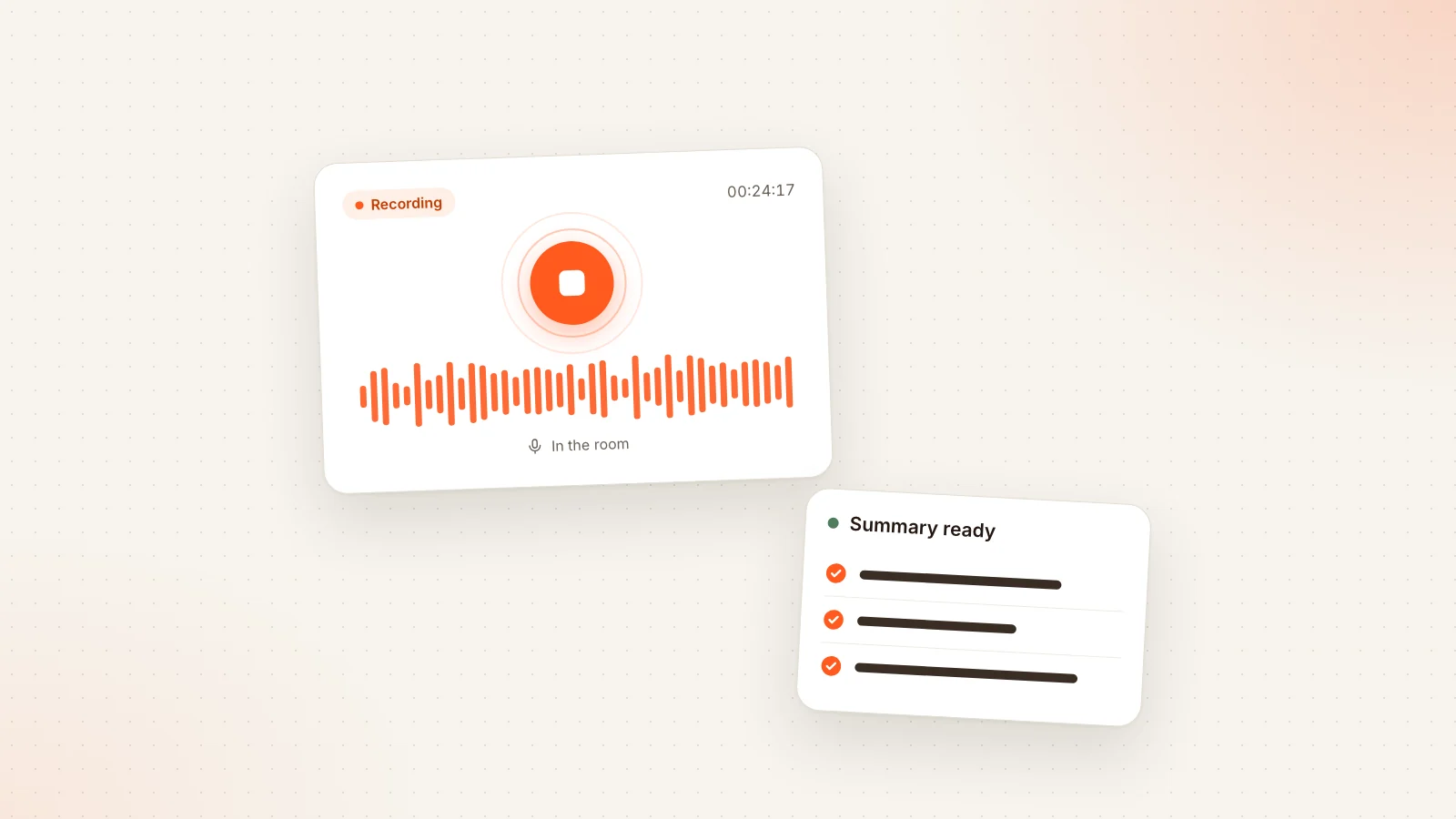
Most advice about meeting notes assumes the meeting happens on a screen. A bot joins the call, the audio arrives clean from each participant's headset, and a transcript appears afterwards. But a large share of important conversations still happen in a room: a weekly 1:1 over coffee, a planning workshop with sticky notes, a client visit at their office, a hiring interview, a quarterly review around a long table. Those meetings are often the ones where the real decisions get made, and they are also the ones most likely to leave no written trace.
This guide walks through how to record an in-person meeting well and how to turn that recording into something useful: a transcript you can trust, a short summary, a clear list of decisions, and action items with owners. None of it requires special hardware. A laptop or a phone, a bit of preparation and a few habits during the meeting make most of the difference.
Start with consent, every time
Before you think about microphones, think about the people in the room. Recording a conversation changes it, and people deserve to know it is happening. The simplest rule is to ask at the start, out loud, and to make it easy to say no.
A good opening sounds like this: "I would like to record this so I can focus on the conversation instead of typing. The audio is only used to produce notes and a summary. Is everyone comfortable with that?" Then pause and actually wait for an answer. If someone hesitates, offer to take manual notes instead, or to stop recording for a sensitive part of the discussion.
A few practical points help:
- Mention recording in the calendar invite so nobody is surprised when they walk in.
- Put the device where people can see it. A hidden recorder erodes trust even when consent was given.
- Say when you stop recording, especially if the conversation continues informally afterwards.
- For external guests such as clients or candidates, ask again even if a colleague already agreed on their behalf.
Rules about recording conversations differ between countries and organizations, and some workplaces have their own policies. This article is not legal advice. When in doubt, check your company policy and ask everyone explicitly.
The best recording setup in the world is worthless if half the room stops speaking freely because of it.
Choose one device and place it well
The most common mistake in room recordings is using too many devices or putting the one device in the wrong place. Two phones recording the same meeting create duplicate files and confusion about which one is the source. One well placed device is almost always better.
Laptop or phone?
Both work. A laptop is convenient when you are already using it to present or take notes, and its built-in microphones are usually designed to pick up voices at a short distance. A phone is small, easy to put in the middle of the table and less likely to be covered by papers or pushed aside. Whichever you choose, make sure it is charged or plugged in, and switch on do not disturb so notifications do not interrupt the recording.
Where to put it
Sound fades quickly with distance, and a microphone near one person will make everyone else sound faint. The goal is to keep the device roughly the same distance from every speaker.
| Situation | Where to place the device | What to avoid |
|---|---|---|
| 1:1 at a small table | Between you, slightly closer to the quieter person | Leaving it in your bag or pocket |
| Group of 4 to 8 at one table | Center of the table, flat, microphone facing up | Next to the person who speaks most |
| Long boardroom table | Center, or ask people to move closer to the middle | Placing it at one end |
| Workshop with people moving around | Near the whiteboard or main discussion spot | Next to a projector fan or window |
| Client office you do not know | Test quickly on arrival and adjust | Assuming the room is quiet |
Reduce noise before it starts
Transcription quality depends heavily on the audio. Close the door, turn off a noisy fan if you can, and move away from espresso machines, open windows and hallways. Keep laptops that are not in use closed, since typing near the microphone is loud. Avoid putting the recording device on top of a surface people tap or drum on. If there is background music in a cafe, sit as far from the speaker as possible.
Do a ten second test. Record a sentence from the farthest seat, play it back, and check that you can understand every word. If you struggle, the transcript will too.
Different meeting types need different habits
Not every in-person meeting is the same, and the right approach depends on what you need from the notes.
1:1s
One-on-ones are often personal and sometimes sensitive. Ask each time rather than assuming standing permission, and be ready to pause. The value of a recording here is less about a full transcript and more about remembering commitments: what the manager promised to follow up on, what the report asked for, which goals were adjusted.
Workshops and planning sessions
Workshops are noisy by nature. People split into groups, talk over each other and move between tables. Record the plenary parts, when the whole group discusses and decides, rather than every breakout. At the end, ask someone to read the key decisions aloud. That short recap gives the summary a clean, explicit source.
Interviews
For hiring interviews, a recording helps interviewers focus on the candidate and compare notes fairly later. Tell the candidate how the recording will be used and who can access it. For research interviews, the transcript itself is often the main deliverable, so audio quality matters even more. A quiet room and a device placed close to the interviewee pay off.
Client visits
When you visit a client, you rarely control the room. Ask permission from the client's side specifically, keep the device visible and be prepared not to record at all. The benefit is significant when it works: you leave with an accurate record of requirements, objections and agreed next steps instead of relying on memory on the train home.
Board-style and formal meetings
Formal meetings often have an official minute taker and a defined process for approving minutes. A recording can support the minute taker, but it does not replace the formal record. Agree in advance whether the audio or transcript is kept, who sees it and for how long.
Hybrid rooms: some people in the room, some remote
Hybrid meetings are the hardest case. Part of the group sits around a table while others join by video. If the meeting is on Google Meet, Zoom or Microsoft Teams, the cleanest option is usually to capture the call itself, because the remote voices arrive directly and the room audio is picked up by the room's conference microphone. In Libranotes, a notetaker bot can join those calls from your Google Calendar or an ICS feed, with one notetaker per meeting so you do not end up with duplicates.
If the room has no conference system and the remote participants join from a single laptop speaker, a separate room recording can capture both sides, but the remote voices will sound quieter. In that case, turn the laptop volume up a little, place the recording device between the speaker and the table, and ask remote participants to say their names when they start talking.
Whatever you do, avoid running a call bot and a separate room recording for the same meeting unless you have a clear reason. Two sources of the same conversation mean two transcripts to reconcile.
Record live or upload the file afterwards
There are two ways to get an in-person meeting into a transcript.
Recording live in the browser. You open the app on your laptop or phone, allow microphone access and press record when the meeting starts. In Libranotes this works directly from the browser using the device microphone, so there is nothing to install. The advantage is that the meeting lands in your workspace immediately, with the right title and date.
Uploading a file afterwards. Sometimes you use a dedicated voice recorder, a phone's built-in recording app, or someone else records and sends you the file. In that case you upload the audio file after the meeting and it is processed the same way. This is also the fallback when the network in a client's building is unreliable: record locally, upload later.
A simple rule: if you control the device and have a stable connection, record live. If you do not, record locally and upload.
Whichever route you choose, give the meeting a clear name before you forget. "Tuesday meeting" is useless three weeks later. "Q4 pricing workshop with sales" is not.
Get speaker labels you can trust
A transcript without speaker labels is a wall of text. A transcript with wrong labels is worse, because it attributes promises to the wrong person. Automatic speaker separation works from the audio, so the habits in the room matter.
- Ask people to say their name the first time they speak in a group they do not share every day. "This is Deniz from finance" gives both humans and software an anchor.
- Avoid crosstalk. When two people speak at once, neither is transcribed well. A facilitator who says "one at a time" is doing the transcript a favor.
- Keep side conversations out. Quiet chats at the end of the table become fragments that confuse the flow.
- Say the names of people you assign tasks to. "Ayşe, can you send the draft by Friday?" is much easier to turn into an action item than "can you send it?"
- Review labels after the meeting. Rename generic labels such as Speaker 1 to real names once, while you still remember who said what.
From transcript to summary, decisions and action items
The transcript is raw material. What people actually read is the summary. A good summary for an in-person meeting has three parts: a short overview of what was discussed, a list of decisions, and a list of action items with an owner and, where one exists, a due date.
Libranotes produces this structure from the transcript automatically, in 32 languages including English and Turkish, or in the original language of the meeting plus English. That matters for mixed teams: a meeting held in Turkish can produce an English recap for colleagues abroad without anyone translating by hand.
Action items are where the recording pays for itself. In Libranotes each action item is emailed to its owner, who can accept or complete it from a link without needing an account. Items with a real due date get daily reminders once they are overdue. If you want a deeper look at writing action items that actually get done, see our guide on meeting notes and action items.
Check the summary before you send it
AI summaries are good at structure and often miss nuance. Spend two minutes reviewing before sharing:
- Are the decisions really decisions, or were they just suggestions?
- Does each action item have the right owner?
- Are due dates real dates that someone agreed to, or guesses?
- Is anything sensitive included that should not go to the whole group?
- Are names spelled correctly?
A summary nobody checked is a draft. A summary somebody checked is a record.
Share, store and search what was said
Once the summary is right, share it while the meeting is still fresh. Sending a recap the same day keeps everyone aligned and gives people a chance to correct misunderstandings early. In Libranotes you can send the recap by email or share a /p/ link, and you can see whether it was opened. For documents that need to live elsewhere, export to PDF, Word or Markdown.
Over time, a collection of meeting records becomes a searchable memory. Instead of asking a colleague what was agreed with a client in spring, you can ask the question directly. Libranotes has an Ask feature that answers questions across your meetings, notes and synced Google Drive documents, with citations pointing back to the source so you can verify the answer. The notes editor supports voice notes and [[links]] between pages, which helps connect a meeting to the project it belongs to. For a broader overview of what these tools can and cannot do, read our AI meeting assistant guide.
Privacy and retention
Recordings of in-person conversations can contain things people would never write in an email. Treat them accordingly.
- Keep only what you need. For most meetings the transcript and summary are enough, and the audio itself adds risk without adding much value. In Libranotes, audio is deleted after the transcript is produced.
- Decide who can see what. A 1:1 transcript should not sit in a folder the whole team can browse.
- Set a retention habit. Delete transcripts of meetings that no longer matter, especially interviews and personal conversations.
- Know how the vendor uses your data. Libranotes does not use your data to train models. Ask the same question of any tool you consider.
- Follow local rules. In Turkey, for example, KVKK sets general principles for processing personal data. Your company's data protection team is the right place to ask how they apply to your meetings.
If you are evaluating plans for a team, the details are on the pricing page.
A short checklist to keep
Before the meeting:
- Mention recording in the invite
- Charge the device, turn on do not disturb
- Pick one device and a central spot
At the start:
- Ask for consent out loud
- Do a quick sound test
- Ask people to say their names
During the meeting:
- One speaker at a time
- Name owners when assigning tasks
- Read key decisions aloud at the end
After the meeting:
- Name the meeting clearly
- Fix speaker labels
- Review the summary, decisions and action items
- Share the same day and clean up what you do not need
Conclusion
Recording an in-person meeting well is less about technology and more about a few deliberate habits: ask first, use one device in the middle of the room, keep the conversation orderly, and review what the software produces before you share it. Do that consistently and the meetings that used to vanish the moment people stood up become records you can search, act on and build on.
Frequently asked questions
Can I record an in-person meeting with just my phone?
Yes. A phone placed flat in the center of the table usually captures a small group well. Charge it, turn on do not disturb, and do a short sound test from the farthest seat before you start.
Should I record live or upload the audio file later?
Record live when you control the device and have a stable connection, since the meeting lands in your workspace right away. If the network is unreliable or someone else recorded, record locally and upload the file afterwards.
How do I get accurate speaker labels in a room recording?
Ask people to say their name the first time they speak, avoid people talking at the same time, keep side conversations out and rename generic speaker labels to real names right after the meeting.
What about hybrid meetings with remote participants?
If the meeting runs on Google Meet, Zoom or Microsoft Teams, capturing the call itself usually gives the cleanest audio. Avoid recording the same meeting twice with a bot and a separate room device.
Does Libranotes keep the audio of my meetings?
No. Audio is deleted after the transcript is produced, and your data is not used to train models. The transcript, summary and action items remain in your workspace.